
Professional Ship Simulator · Setups · Guide
Professional Ship Simulator Controls - Cockpit, Controller and View Keys
Professional Ship Simulator controls: the clickable cockpit, joystick and gamepad mappings, the view keys V and F1 to F4, and the sea-state settings.
By the Gamebase team · Updated 2026-10-25
On this page (10)
- The clickable cockpit
- Joystick, gamepad and controller mappings
- Camera keys, viewpoints and presets
- Zoom, binoculars and moving around
- Settings that change the water
- Can you play Professional Ship Simulator with a controller?
- Which keys switch the camera?
- Can you steer the ship without a joystick?
- Can you make the sea calmer?
- How many view presets are there?
Professional Ship Simulator takes three input routes: a clickable bridge, keyboard shortcuts for the camera, and joystick or gamepad mappings that can be tied to individual ship classes. The developer's Knowledge Base documents each of them, and the button and axis limits are published rather than left to trial and error.
The clickable cockpit
Most actions can also be done by clicking the matching button inside the bridge view. The steering devices - wheel, azipod control and lever - respond to a left mouse hold and a drag to either side of the device centre, and the same rule covers the sticks for anchors, thruster, ramps, towlines and the three throttles (main, port and starboard).
That makes the mouse a complete fallback for anyone without a joystick: the developer's site describes the cockpit as fully clickable and lists joystick, gamepad or keyboard as the supported devices.
Joystick, gamepad and controller mappings
A controller setup starts on the main menu under options and input, where you enter a unique name and press the mapping button. The mapping can hold up to 70 buttons and a dozen axes, and the developer site summarises the same hardware as over 50 buttons and 9 axes.
Pressing Apply stores the mapping, and the stored mapping is then linked to the available ship classes through the assign to ship control. That is the reason a mapping is worth building per class rather than once for the whole game: the same physical stick can mean a towline on a tug and a ramp on a ferry.
Camera keys, viewpoints and presets
Four viewpoints ship as standard: external, stern, bow and bridge. V and shift + V cycle through them, and F1 to F4 reach the same four directly. Holding the right mouse button moves the viewport in any direction, and ctrl + V fixes the view to the heading of the ship.
Each of the four viewpoints carries eight presets. A preset is stored with ctrl + F1 to F8 and recalled with shift + F1 to F8. The Knowledge Base adds one practical warning: on some PC configurations other software can claim the F keys, which leaves them unavailable inside the simulator.
Zoom, binoculars and moving around
In every viewpoint except the external view the mouse wheel zooms. At maximum zoom the game switches to binocular mode automatically and shows the bearing and distance to whatever sits under the crosshair, and a vessel targeted that way is marked as an unknown contact in the radio menu. Arrow keys move the camera around inside the ship's dimensions, and the position is remembered after you leave a viewpoint.
Settings that change the water
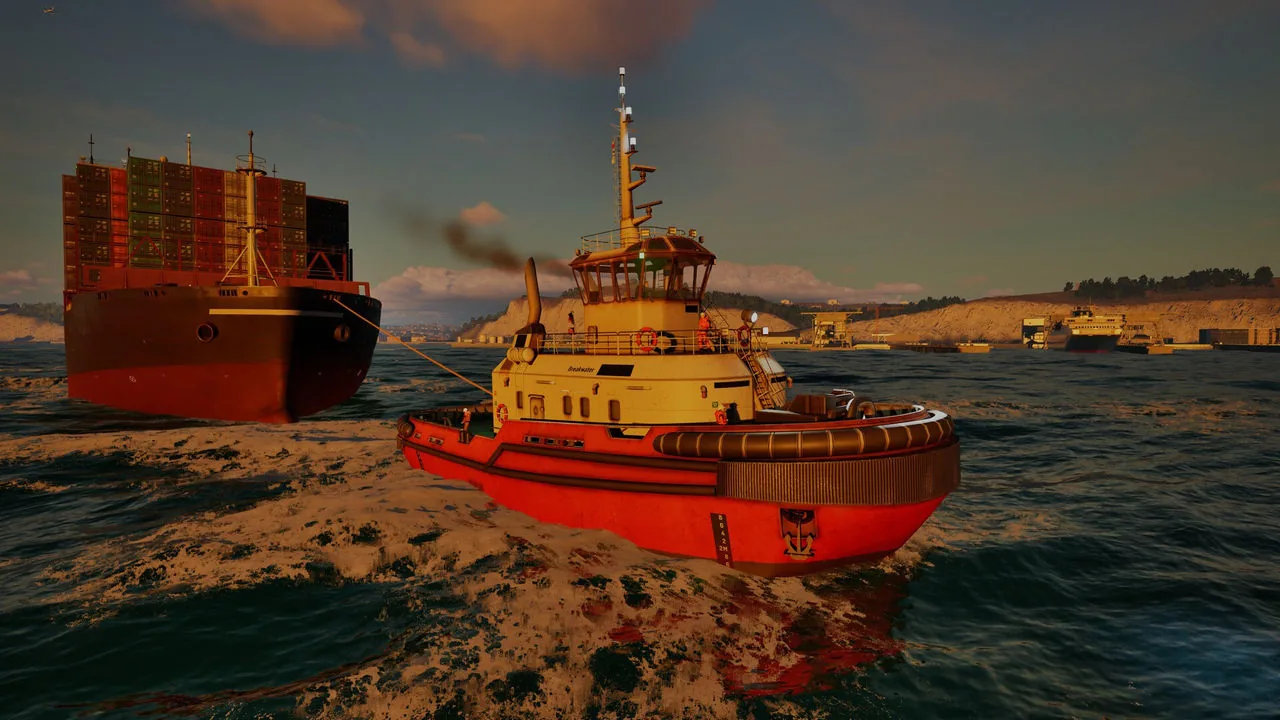
The launch guide says wave height, weather and other elements are adjustable in the settings, and that lowering the difficulty produces calmer conditions while raising it adds challenge. Those settings sit beside the input options rather than inside any mission menu.
The ship systems those mappings drive are described on How It Plays, the hardware side is covered on Setups, and the first-session walkthrough is on New Player Guide.
FAQ
Can you play Professional Ship Simulator with a controller?
Yes. A setup is created under options and input, and it can hold up to 70 buttons and a dozen axes before it is applied and linked to a ship class.
Which keys switch the camera?
V and shift + V cycle the four viewpoints, F1 to F4 jump to them directly, ctrl + V locks the view to the ship heading, and the right mouse button moves the viewport.
Can you steer the ship without a joystick?
Yes. The bridge view is clickable: the wheel, azipod control and levers respond to a left mouse hold and drag, and the same applies to anchors, thrusters, ramps, towlines and throttles.
Can you make the sea calmer?
Yes. The launch guide says wave height, weather and other elements are adjustable in the settings, and that lowering the difficulty gives calmer conditions.
How many view presets are there?
Eight per viewpoint. A preset is stored with ctrl + F1 to F8 and activated with shift + F1 to F8.
More in Setups
More setups pages in Professional Ship Simulator.
- Professional Ship Simulator System Requirements - Tutorial Settings and HardwarePlatformUpdated 2026-10-07
References
- NauticXP Knowledge Base - Controller support
- NauticXP Knowledge Base - Clickable cockpit
- NauticXP Knowledge Base - Viewmodes
- NauticXP developer site - Professional Ship Simulator
- Steam news - Professional Ship Simulator launch guide
Facts on this page are compiled from the references above. Items marked "to confirm" are single-source and not yet verified.